Stop Committing PDFs: Use GitHub Releases as Your Library Backend
Git history bloats forever when you commit PDFs. Git LFS costs money. Here's how to use GitHub Release assets as free, CDN-backed storage for your document library while keeping git repos lightweight.

You know that moment when you clone a repo and it takes forever because someone committed PDFs three years ago? Or when you discover your “books” repo is 2GB even though you deleted half the files last month?
Yeah. Git never forgets.
The Pain
Here’s what happens when you commit PDFs to git:
- You add
machine-learning.pdf(45MB) and commit it - Later you realize it’s the wrong version and delete it
- You add the correct version and commit again
- Your repo looks clean, but
git clonestill downloads both PDFs - Forever
Every PDF that ever touched your git history stays there. Even after you delete the file, run BFG Repo-Cleaner, and sacrifice a rubber duck to the git gods. The weight never leaves. Every clone, every fetch, every new contributor pays the price.
If you’ve been using GitHub for personal document storage, you’ve probably hit one of these walls:
- GitHub’s 100MB file size limit (hard stop)
- Repo clones taking minutes for a “simple” books collection
- That awkward moment when a collaborator asks why a 50-file repo is 3GB
Why the Usual Fixes Suck
“Just delete the files!”
Doesn’t work. Git history remembers everything. Your repo stays bloated. Clones stay slow.
“Use git filter-repo or BFG!”
Sure, if you want to rewrite history, force-push, and break every clone. Plus you’ll do it again next month when you add more PDFs. Not a workflow, it’s a fight.
“Switch to Git LFS!”
Now you’re paying for storage and bandwidth. GitHub Free gives you 1GB storage and 1GB/month bandwidth with LFS. After that, it’s $5/month per 50GB data pack. For a personal library. And you still need special tooling, migration effort, and every clone needs the LFS client.
Also, Git LFS doesn’t actually solve the “download on-demand” problem. You still fetch a pointer, then fetch the file. It’s better than raw commits, but it’s not free, and it’s not simple.
The Trick: Releases as Object Storage
Here’s the escape hatch: GitHub Release assets are free, CDN-backed, and support per-file HTTP downloads. They’re designed for distributing software releases, but there’s nothing stopping you from using them as a document backend.
The insight is simple:
- Store PDFs/EPUBs as Release assets (outside git history entirely)
- Store metadata as a tiny YAML file (inside git)
- Download individual files on-demand from GitHub’s CDN
Your git repo stays lightweight. Your documents get free, reliable hosting. You only download what you actually open.
shelf-programming/
├── catalog.yml           # 5KB, tracked in git
├── README.md             # 2KB, tracked in git
└── releases/library/     # Exists on GitHub, not in git
    ├── sicp.pdf          # 6MB, release asset
    ├── taocp-vol1.pdf    # 12MB, release asset
    └── gopl.pdf          # 4MB, release asset
The entire git repo is 7KB. The library is 22MB. Cloning takes 0.2 seconds. Opening a book downloads only that book.
The Workflow
This is what shelfctl implements:
One shelf repo per topic:
| |
Each shelf is a normal GitHub repo. Public or private, your choice. No special setup.
catalog.yml for metadata:
| |
Searchable, greppable, versionable. All the benefits of git for metadata, none of the bloat for files.
On-demand download with shelfctl open:
| |
First time downloads from GitHub’s CDN. Subsequent opens use your local cache. On another machine? Same command fetches it again on-demand.
You can have a 100GB library across multiple shelves, but if you only read 10 books, you only download 800MB.
What Day-to-Day Use Looks Like
Once your shelves are set up, the workflow collapses to a few commands:
| |
Your library follows you across machines. Every shelfctl open checks local cache first, then pulls from GitHub’s CDN if needed. Switch to a new laptop, run the same commands, get the same books. No syncing, no setup, no copying files around.
Annotations travel with the book. Highlight and annotate a PDF in your reader of choice. The changes are saved to local cache. Run shelfctl sync sicp and the annotated version is uploaded back to GitHub, replacing the original. Open it on another machine and you get your annotated copy. No extra sync service required.
| |
Tags and search keep things findable. As your library grows across multiple shelves, tags are how you navigate it without remembering which shelf a book lives in.
| |
Migration: Fixing the Mess You Already Have
The real value isn’t starting fresh. It’s fixing the mess you already have.
If you’ve got PDFs scattered across repos, committed and re-committed, tangled in git history, here’s how you escape:
1. Scan your existing repo:
| |
This outputs a list of every PDF/EPUB/MOBI in the repo, with suggested IDs and metadata.
2. Create organized shelves:
| |
The --create-repo flag creates the GitHub repo. --create-release sets up the initial release tag. Both are automated.
3. Edit queue.txt to assign shelves:
The scan produces lines like:
path/to/book.pdf → suggested-id → programming
another-book.pdf → another-id → history
You can edit the shelf assignments, IDs, or add metadata. Then:
4. Migrate in batches:
| |
This will:
- Download each file from the old repo’s git history
- Upload it as a release asset in the target shelf
- Create catalog entries with checksums
- Track progress so you can resume if interrupted
The --n 10 flag processes 10 books, then stops (to avoid rate limits). The --continue flag lets you resume where you left off.
5. Open books from your new shelves:
| |
No more cloning bloated repos. No more waiting for git to decompress objects. Just download the file you want from the CDN and open it.
Real-World Migration Example
Let’s say you have old-books-repo with 200 PDFs committed over 3 years. The repo is 1.2GB. Clones take 90 seconds. You want to split it into topic-based shelves.
| |
Now:
shelf-programmingis 15KB (git repo) + 450MB (assets)shelf-historyis 12KB (git repo) + 300MB (assets)shelf-fictionis 18KB (git repo) + 500MB (assets)
Clones are instant. You can browse metadata without downloading anything. Books are opened on-demand.
When Not to Use This
This approach is great for personal document libraries, but it’s not universal. Don’t use Release assets if:
You need git versioning of binaries:
If you’re editing PDFs and want to track changes, commit them. Git is designed for versioning. Use LFS if needed, but keep them in git history.
You need collaborative editing:
GitHub Releases are immutable once published. If multiple people need to edit and re-upload versions of the same document, you want git commits (or a different tool entirely).
You’re building a software project with documentation:
If you’re shipping a project and the PDFs are part of the release artifacts (like a manual), commit them or use LFS. Don’t fight your build system.
You want GitHub-native search:
Release assets don’t show up in GitHub code search. The catalog is searchable, but not the PDF contents. If you need full-text search across documents, you’ll need external tooling.
You need fine-grained access control per file:
GitHub repo permissions are all-or-nothing. If you need per-file permissions, you’re better off with a dedicated document management system.
The use case here is narrow: personal or small-team document libraries where you want simple, free, reliable storage without git history bloat.
Why This Works
GitHub doesn’t charge for Release assets (within reasonable use). They’re served from a CDN. They support HTTP range requests (partial downloads). They’re as permanent as the repo itself.
This isn’t a hack. GitHub designed Releases for distributing files. The only twist is using them for books instead of binaries.
Metadata stays in git because that’s what git is good at: small text files that change over time. You get version history, diffs, and search for free.
The split is clean:
- Git = small, structured, versionable (catalog.yml)
- Releases = large, immutable, downloadable (PDFs)
Each does what it’s designed for. No fighting the tools.
Try It
shelfctl implements this entire workflow. It’s open source, written in Go, and takes 2 minutes to set up.
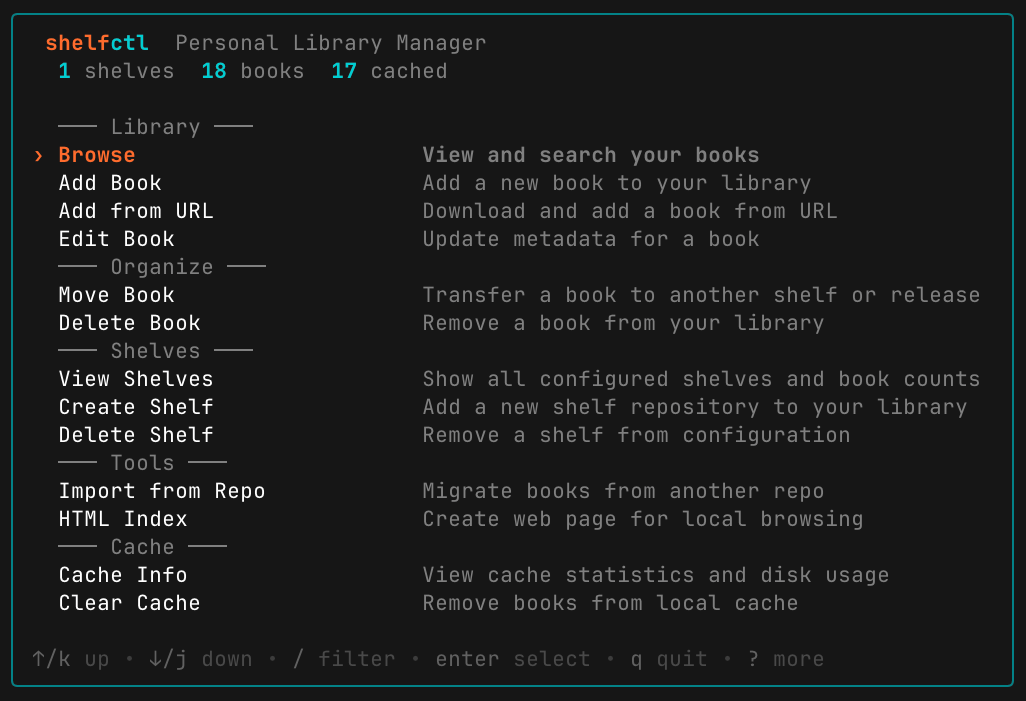
Running shelfctl with no arguments opens an interactive TUI hub for browsing, adding, and editing books without typing commands. All CLI commands also work non-interactively with --json output for scripting.
Install:
| |
Authenticate:
| |
Create your first shelf:
| |
Add a book:
| |
Open it later:
| |
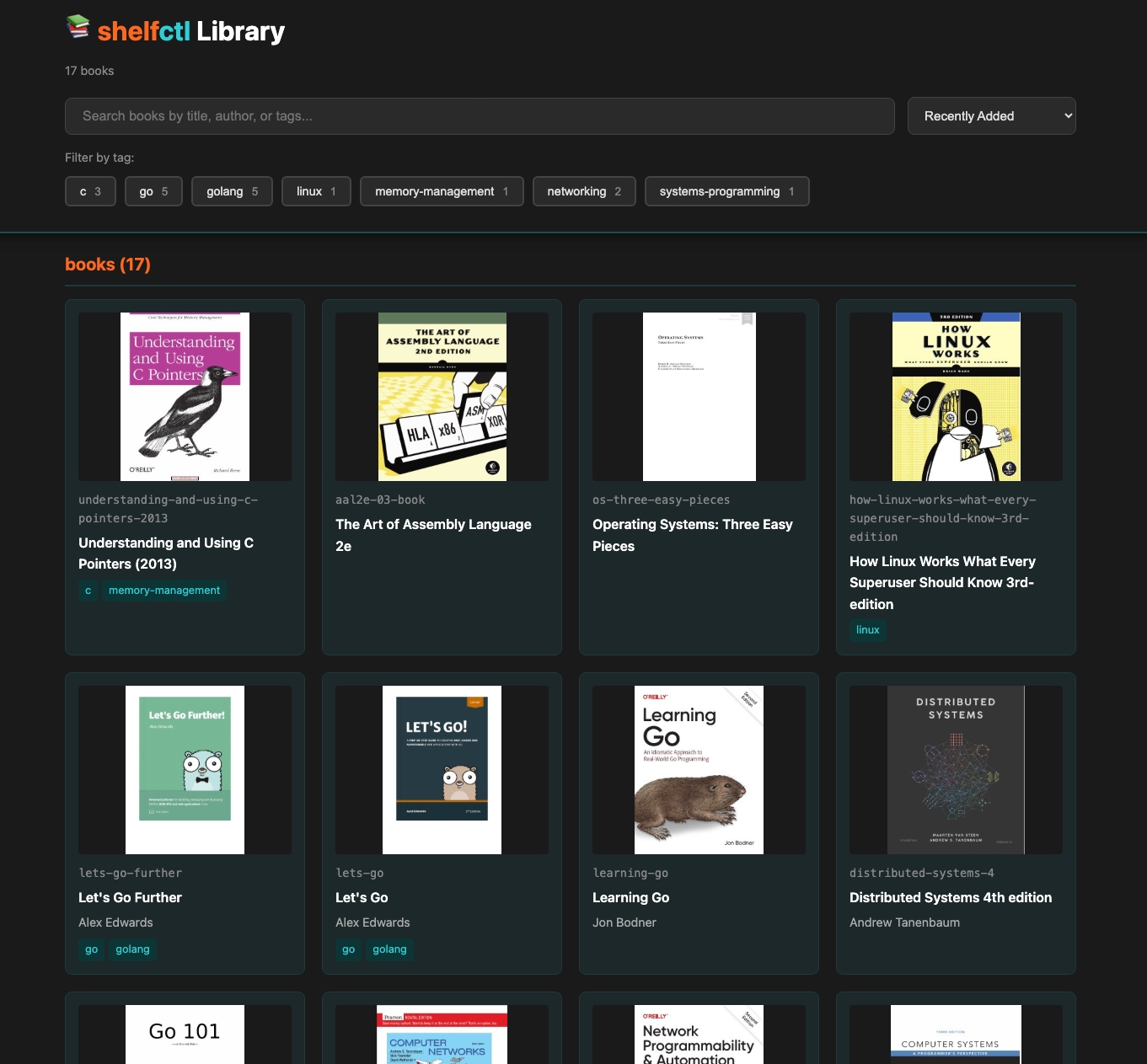
Browse offline:
| |
This generates a static HTML page from your cached books - cover thumbnails, tag filters, live search - and opens it in your browser. No server required, works completely offline.
Done. Your library lives in GitHub Releases. Your git history stays clean. Your clones stay fast.
Project: https://github.com/blackwell-systems/shelfctl Docs: https://blackwell-systems.github.io/shelfctl/ Tutorial: https://blackwell-systems.github.io/shelfctl/TUTORIAL/
If this solves a problem you’ve been fighting, star the repo or try it out. If you hit issues, file them. If you want to contribute, see CONTRIBUTING.md.

Meet Shelby, the shelfctl mascot. Shelby is a terminal wearing a bookshelf like a sweater, because why not.